Wednesday, June 28, 2017

How to Add and Play 4K files via Plex Perfectly


Plex says that they have built the new software for the living room PC from scratch. However, not all 4K videos are supported for Plex. Some 4K (ultra high definition) devices are recognized by the Plex app. We're working to bring 4K playback support to other devices, too. 4K/UHD content matching the following will Direct Play on supported devices.


Transcoding 4K content is a very intensive process and will require a powerful computer running Plex Media Server. So according to our many tests, we found the best way of playing 4K videos from Plex with no buffering is to transcode and compress the 4K videos to Plex supported formats for nice playing no buffering. Dimo Video Converter Ultimate is a professional 4K to Plex converter, which can convert any 4K videos including 4K MP4, 4K MKV, 4K H.265, 4K MOV, 4K AVI etc to Plex friendly formats. If you are Mac user, please turn to Dimo Video Converter Ultimate for Mac.

Free Download Dimo Video Converter Ultimate (Win/Mac):


Other Download: 
A full guide to Convert 4K to Plex for playing

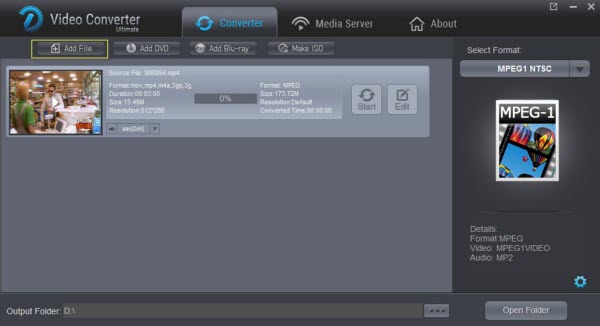
Step 1. Click "Add Flie" button to add your 4K video files to the program. Or directly drag the video you want to convert to the left item bar. 


Step 2. Set right output format. Click "Format" bar, and select H.264 or H.265 MP4 from "Video" or "HD video" to fit Plex. And you can hit the "Setting" button to compress 4k to 1080p for better viewing experience.


Step 3. Click the "Start" button to convert 4K to Plex friendly video formats immediately. When the conversion finishes, click "Open" to find the converted video files. Then you can effortless transfer the video files via Plex media server for playback with Smart TV, Apple TV, like iPhone, iPad, HTC, Samsung, Xbox One S, Panasonic UB400,etc. And you can watch all 4K videos in different formats like MP4, MOV, AVI, XAVC, MXF, etc. by yourselves.  

Free Download or Purchase Dimo Video Converter Ultimate:


Kindly Note:

The price of Dimo Video Converter Ultimate for Windows is divided into 1 Year Subscription, Lifetime/Family/Business License: $43.95/Year; $45.95/lifetime license; $95.95/family license(2-4 PCs); $189.95/business pack(5-8 PCs). Get your needed one at purchase page.

Related Software:

BDmate (Win/Mac)

Lossless backup Blu-ray to MKV with all audio and subtitle tracks; Rip Blu-ray to multi-track MP4; ConvertBlu-ray to almost all popular video/audio formats and devices; Copy Blu-ray to ISO/M2TS; Share digitized Blu-ray wirelessly.

DVDmate (Win/Mac)

A professional DVD ripping and editing tool with strong ability to remove DVD protection, transcode DVD to any video and audio format, and edit DVD to create personal movie.

Videomate (Win/Mac)

An all-around video converter software program that enables you to convert various video and audio files to formats that are supported by most multimedia devices.

8K Player (Win/Mac)

A mixture of free HD/4K video player, music player, Blu-ray/DVD player, video recorder and gif maker. 

Contact us or leave a message at Facebook if you have any issues.

Related Articles:

Tuesday, June 20, 2017

How to Add and View WMV Files in Windows Media Player


You may face this issue that Window Media Player cannot play the WMV file.Because the player may not support the file type or the codec that was used to compress the particular file. It is not necessary that all WMV files could be played with Windows Media Player as it may not have the right codec. In order to play the WMV file with proper codec you need to convert the file into Windows Media Player supported format such as asf, wma, wmv or wm file types. Here we will introduce the best application to play WMV files on Windows Media Player along with its stunning attributes.


Play WMV on Windows Media Player Without Any Problem

Dimo Video Converter Ultimate is the best solution to solve WMV files playing issues with Windows Media Player. With this program you could play your WMV files with ease by simply installing this software. It comes with a trial version and provides A to Z solutions for any kind of issues for video or audio files.This program is very easy to use and you just need to install this software in your PC to run the WMV files through it to bring it down with the right codec. You will not find the wide range of features provided by Dimo with any other tool. 

Free Download Dimo Video Converter Ultimate (Win/Mac):


Other Download: 

How to Play WMV or Other Files on Windows Media Player

Step 1. Install Dimo Video Converter Ultimate and load your files

Launch the program and import your WMV files by simply using the "Add File" or Drag & drop option. Your WMV files will be loaded immediately. You could also perform multiple conversions of WMV files through batch processing of files.


Step 2. Select an output format

Windows media player supports WMV, ASF, WM or WMA file formats. So you could choose any of these file formats from "Video" category. 


Step 3. Click "Start" to start conversion

Choose a file location for the video file to be saved after the conversion process is over. Click "Start" button to start the conversion of WMV files to make it compatible with Windows Media Player with the right codec. It will only take few minutes and you could keep track of the progress too.

Tip: The software can also convert videos to other formats, such as, MP4, FLV, AVI, etc. and other devices, such as, iPad, iPhone, iPod, HTC, Samsung, etc. Besides, it can help you rip Blu-ray/DVD to common format that you can watch them anywhere and anytime. 

Free Download or Purchase Dimo Video Converter Ultimate:


Need the lifetime version to work on 2-4 PCs so that your friends and family can instantly broaden their entertainment options? Please refer to the family license here. 


Kindly Note:

The price of Dimo Video Converter Ultimate for Windows is divided into 1 Year Subscription, Lifetime/Family/Business License: $43.95/Year; $45.95/lifetime license; $95.95/family license(2-4 PCs); $189.95/business pack(5-8 PCs). Get your needed one at purchase page.

More recommendation: Top WMV Player for Windows 10 to play WMV on Windows 10

Although VLC offers support for WMV media, however, you may have various kinds of problems when playing WMV in Windows 10 with the app. Fortunately, there are several third-party commercial player apps on the market to help you along. 8K Player ($35.95) is available for trial download. It lets you watch WMV movies on your Windows 10, and do more too, including reading data from Blu-ray, DVD, ISO images, watching other movies on your Windows 10, making gif, adding bookmark, recording screen, etc..

Free Download 8K Player Blu-ray Power (Win/Mac):


Related Software:

BDmate (Win/Mac)

Lossless backup Blu-ray to MKV with all audio and subtitle tracks; Rip Blu-ray to multi-track MP4; ConvertBlu-ray to almost all popular video/audio formats and devices; Copy Blu-ray to ISO/M2TS; Share digitized Blu-ray wirelessly.

DVDmate (Win/Mac)

A professional DVD ripping and editing tool with strong ability to remove DVD protection, transcode DVD to any video and audio format, and edit DVD to create personal movie.

Videomate (Win/Mac)

An all-around video converter software program that enables you to convert various video and audio files to formats that are supported by most multimedia devices.

Contact us or leave a message at Facebook if you have any issues.

Related Articles:

  • Put downloaded 4K Torrent videos to UHD TV for Playback
  • Convert MTS files to TV H.265 MP4/H.264 MP4 for Playback
  • [/list] 
  • How to Play all MKV files in VLC Media Player
  • [/list]

    Saturday, June 17, 2017

    Easily Backup DVD to MKV with Multiple Audio and Subtitle Streams


    When you own DVD movies, you want to make sure that nothing damages your precious investment. The best way to do it? Make a DVD backup copy to a digital file. The best way to do that? Generally, there are multiple audio tracks in the DVD movies, you maybe want to rip DVD with multiple subtitle and audio tracks while your DVD movies have several languages so that you can switch which language you can listen. The article will tell you how to solve the problem that rip DVD to Multi-track MKV video.


    The MKV format can store multiple video/audio tracks with all meta-information and preserve chapters. There are many players that can play MKV files nearly on all platforms. Generally, there are multiple audio tracks in the DVD movies, and you can choose the audio track to play with the DVD player as you want. If you rip DVD to MKV video with multiple audio tracks to save DVD movies or watch the movies anywhere. 

    The software Dimo Video Converter Ultimate can convert and convert DVD movies to MKV video with multiple audio tracks, so you may watch DVD discs with your favorite player on your favorite OS or on your favorite device. Besides, the product can also support lossless DVD to MKV backup. If you are Mac user, please turn to Dimo Video Converter Ultimate for Mac. 
    Free Download Dimo Video Converter Ultimate (Win/Mac):


    Other Download: 

    How to Rip DVD to MKV with multiple audio tracks and subtile? 

    Step 1. Install and launch the software.

    Insert an DVD disc into the DVD drive, and click "Add DVD" button on the to load DVD video.


    Step 2. Select output format.

    Select the main title with multi-track and click the "Mutli-Track MKV" tap.


    Step 3. Select the subtitle and audio track that you need


    Step 4. Convert the video.

    Click "Start" button to save multi-track MKV form DVD. After conversion, open the destination folder, you will find the converted multi-track MKV video for playing with multi-track player like 8K Player, VLC, etc.
    Free Download or Purchase Dimo Video Converter Ultimate:


    Need the lifetime version to work on 2-4 PCs so that your friends and family can instantly broaden their entertainment options? Please refer to the family license here. 


    Kindly Note:

    The price of Dimo Video Converter Ultimate for Windows is divided into 1 Year Subscription, Lifetime/Family/Business License: $43.95/Year; $45.95/lifetime license; $95.95/family license(2-4 PCs); $189.95/business pack(5-8 PCs). Get your needed one at purchase page.

    Related Software:

    BDmate (Win/Mac)

    Lossless backup Blu-ray to MKV with all audio and subtitle tracks; Rip Blu-ray to multi-track MP4; ConvertBlu-ray to almost all popular video/audio formats and devices; Copy Blu-ray to ISO/M2TS; Share digitized Blu-ray wirelessly.

    DVDmate (Win/Mac)

    A professional DVD ripping and editing tool with strong ability to remove DVD protection, transcode DVD to any video and audio format, and edit DVD to create personal movie.

    Videomate (Win/Mac)

    An all-around video converter software program that enables you to convert various video and audio files to formats that are supported by most multimedia devices.

    8K Player (Win/Mac)

    A mixture of free HD/4K video player, music player, Blu-ray/DVD player, video recorder and gif maker. 

    Contact us or leave a message at Facebook if you have any issues.

    Related Articles:

    Wednesday, June 14, 2017

    How to Convert MP3 to AIFF in iTunes/WMP

    Is it possible to convert MP3 to AIFF?

    Converting MP3 to AIFF becomes easier when you use a powerful MP3 Converter like Dimo Video Converter Ultimate. MP3 is both a widely used format for audio streaming or storage. Most of the music we hear in daily life is compressed via MP3 format. Nearly all the electronic products such as Walkman, cellphones, tablets can play MP3 files. Even though MP3 is regarded as a lossy media format, it supports variety of Bitrate settings with flexibility to change audio encode settings. While Audio Interchange File Format (AIFF) is mainly used in Mac and other Apple devices. Find out more about how to use the top MP3 audio converter to Edit, Share or Convert MP3 files into AIFF with only 3 easy steps.


    Best Tool to Convert MP3 to AIFF

    Converting popular Audio formats like MP3 becomes easier when you use Dimo Video Converter Ultimate. It is the top-rated program in the market, which works as an editor, media player or converter. It is specially designed to suit the needs of professionals or novice users. Compared to other media converters, Dimo Video Converter Ultimate can convert any media format with no compromise in audio/video quality. Make sure that you use the original MP3 audio file to encode the audio files into AIFF to attain highest audio quality.

    Plus, it is a leading audio/video converter for any type of multimedia conversions such as MP3 to AIFF, MP3 to FLAC, MP3 to AC3, MP3 to AAC, MP3 to AU, MP3 to M4A, MP3 to WAV and so on. After reading this unique article, you will surely become a Pro in converting MP3 files into AIFF. And you are allowed to customize Bitrate, Audio Compression, Sample Rate, Stereo Settings and so on easily. It's highlighting feature is that, you can download any MP3 file with its online downloader and then convert the MP3 file into AIFF easily. It is the best application for any commercial, non-commercial or personal use. If you are Mac user, please turn to Video Converter Ultimate for Mac.

    Free Download Dimo Video Converter Ultimate (Win/Mac):


    Other Download: 

    The step of Converting MP3 to AIFF 

    Step 1: Download and install Dimo Video Converter Ultimate, after it, you can launch the software and click the "Add Flie" to import the MP3 audio or dragging it to surface.


    Step 2: Choose the AIFF for outputting format, and you can convert MP3 to AAC, AC3, M4A, etc. Use editing or customizing tools, to trim, change bitrate, audio codecs, sample rate or other default settings if required.


    Step 3: Click the "Start" tap to convert the MP3 audio. Within few seconds, MP3 files will be converted into AIFF format. You can use the AIFF file for smooth playback in any device you want like iPhone, iPad, HTC, Samsung, etc.. If you want to extract audio files from MP4, AVI, VOB, WMV, you can use the software to get it.

    Convert MP3 File to AIFF in iTunes (Optional)

    iTunes is the most popular MP3 to AIFF converter as you can select any MP3 music file and convert it into AIFF format for perfect compatibility with your apple devices. By following these steps, you can convert any iTunes compatible audio file into AAC, Apple Lossless, AIFF, MP3 or WAV. Follow these steps to convert MP3 songs into AIFF file format via iTunes.

    Step 1: Get iTunes and Select 'Preferences'

    First of all, Open iTunes to start MP3 to AIFF Conversion. In iTunes, click on Edit tab to select 'Preferences'.

    Step 2: Edit Import Settings and Select AIFF as Preferred Format

    With this step, 'General Preferences' window will open, where you have to choose 'Import Settings' button and click OK. When you choose Import Settings button, it will open Import Settings window where you can select any audio encoder such as AAC Encoder, AIFF Encoder, Apple Lossless Encoder, WAV Encoder or MP3 Encoder. Choose AIFF encoder.

    Step 3: Convert to AIFF Version

    Select the MP3 song and then Select 'File' menu. Under 'File' menu, select 'Convert' and then choose 'Create AIFF Version' to initialize MP3 song to AIFF Conversion.

    Free Download or Purchase Dimo Video Converter Ultimate:


    Need the lifetime version to work on 2-4 PCs so that your friends and family can instantly broaden their entertainment options? Please refer to the family license here. 


    Kindly Note:

    The price of Dimo Video Converter Ultimate for Windows is divided into 1 Year Subscription, Lifetime/Family/Business License: $43.95/Year; $45.95/lifetime license; $95.95/family license(2-4 PCs); $189.95/business pack(5-8 PCs). Get your needed one at purchase page.

    Related Software:

    BDmate (Win/Mac)

    Lossless backup Blu-ray to MKV with all audio and subtitle tracks; Rip Blu-ray to multi-track MP4; ConvertBlu-ray to almost all popular video/audio formats and devices; Copy Blu-ray to ISO/M2TS; Share digitized Blu-ray wirelessly.

    DVDmate (Win/Mac)

    A professional DVD ripping and editing tool with strong ability to remove DVD protection, transcode DVD to any video and audio format, and edit DVD to create personal movie.

    Videomate (Win/Mac)

    An all-around video converter software program that enables you to convert various video and audio files to formats that are supported by most multimedia devices.

    8K Player (Win/Mac)

    A mixture of free HD/4K video player, music player, Blu-ray/DVD player, video recorder and gif maker. 

    Contact us or leave a message at Facebook if you have any issues.

    Related Articles:

    Friday, June 9, 2017

    How to Play Blu-ray Movie on HTC U11

    If you are the user of HTC U11, you want to convert Blu-ray to HTC U11 for watching anywhere with Blu-ray 1080p resolution we can get better visual enjoyment. But, most users don't know the way to transfer Blu-ray to HTC U11, as purchased Blu-ray movies are all copy protected and HTC Ull don't support all format. It means that the Blu-ray maybe not be palyed on HTC U11. Please don't worry, all you need is a Blu-ray Ripper software, which will help you to get rid of Blu-ray's copy protection and rip Blu-ray to HTC U11 supported video format, and the ripped files will have no protection, you can play ripped Blu-ray videos on any playable devices.


    A good Blu-ray Ripper will help you to rip latest Blu-ray movies smoothly, here we would like to recommend the best Blu-ray Ripper software for you, the program is Dimo Video Converter Ultimate, which has  mac version, with this program you can rip Blu-ray to HTC U11 best video format, and you can rip Blu-ray to MKV, AVI, MP4, MOV, FLV, WMV, MPG or other any formats you want. Besides ripping Blu-ray disc movies, this software can also rip Blu-ray ISO image file, Blu-ray folder, or convert HD Videos like MKV, AVI, WMV, MOV, MPG, MTS, M2TS,  MXF, VOB,  etc. to editing programs, tablets, smartphones, HDTVs or any other formats.You can also download the video form the internet and share the located video with this software.

    Free Download Dimo Video Converter Ultimate (Win/Mac):


    Other Download: 

    Easy way to rip Blu-ray to HTC U11 supported format

    1. Please download and install this Blu-ray to HTC U11 Ripper on your computer and launch it.

    2. Please click "Add Blu-ray" button to import Blu-ray disc movie that you want to rip. If you need to convert HD videos, please click “Add Files” button on the interface.


    3. Select supported video format of HTC U11. Please press the format column and then you can choose rich output formats, to play Blu-ray on HTC U11 with compatible format, we recommend you to choose MP4 format from "Device > HTC", it is the best format for HTC U11.


    4. Click "Start" button on the main interface of this HTC U11 Blu-ray Ripper, the software will begin the ripping process. After conversion, get ripped files for transferring to your Android phone.

    Tips: It can also convert DVD disc to MP4, FLV, MOV,MKV, etc. and rip Blu-ray/DVD disc to many device such as, iPad, iPhone, Samsung. 


    Free Download or Purchase Dimo Video Converter Ultimate:


    Need the lifetime version to work on 2-4 PCs so that your friends and family can instantly broaden their entertainment options? Please refer to the family license here. 


    Kindly Note:

    The price of Dimo Video Converter Ultimate for Windows is divided into 1 Year Subscription, Lifetime/Family/Business License: $43.95/Year; $45.95/lifetime license; $95.95/family license(2-4 PCs); $189.95/business pack(5-8 PCs). Get your needed one at purchase page.

    Related Software:

    BDmate (Win/Mac)

    Lossless backup Blu-ray to MKV with all audio and subtitle tracks; Rip Blu-ray to multi-track MP4; ConvertBlu-ray to almost all popular video/audio formats and devices; Copy Blu-ray to ISO/M2TS; Share digitized Blu-ray wirelessly.

    DVDmate (Win/Mac)

    A professional DVD ripping and editing tool with strong ability to remove DVD protection, transcode DVD to any video and audio format, and edit DVD to create personal movie.

    Videomate (Win/Mac)

    An all-around video converter software program that enables you to convert various video and audio files to formats that are supported by most multimedia devices.

    8K Player (Win/Mac)

    A mixture of free HD/4K video player, music player, Blu-ray/DVD player, video recorder and gif maker. 

    Contact us or leave a message at Facebook if you have any issues.

    Related Articles:

    Thursday, May 4, 2017

    Why can’t I add AVI to PowerPoint for presentation?

    Found some torrent movies or TV shows in AVI format, or some family AVI footages from your digital camcorders or mobile phone that is perfect for your PowerPoint presentation and would like to embed it  to make the PPT more interesting and appealing? However, many people encountered error message when they tried to insert the AVI video file into PowerPoint slide, no matter PowerPoint 2016, 2010, 2003, 2007 or lower version. Things could get even worse, you successfully add an AVI movie in PowerPoint, but you still get a "Cannot play back the file. The format is not supported" message when you play the video during a presentation. Well, read on to learn detailed reason and solution.


    Why we can't insert an AVI video into PowerPoint PPT successfully?

    First, look at the best Video Formats for PowerPoint:

    The best video formats for PPT can be varied depending on what version of PowerPoint and what computer system you are using. Here is a concise list:

    1. PowerPoint 2007 and lower version 

    According to Microsoft, PowerPoint 2007 and lower version only support WMV, AVI, ASF, and MPG (MPEG-1) video formats,  However,   some .avi files may require additional codecs, if your computer doesn't install according video and audio codec, the AVI video embed may cannot playback in PowerPoint 2007/2003/2002/2000/97/95.

    For the best video playback experience,
    • If you are using a Windows 8 or Windows 10 computer, we recommend you to use .mp4 videos encoded with H.264 video and AAC audio to inserted to PowerPoint 2013.
    • If you a Windows 7 or Windows Vista or Windows XP computer, we strongly recommend you to use WMV or MPEG-1 videos.
    2. PowerPoint 2010 

    Only support .mp4, .mov, and .qt formats if the Apple QuickTime player is installed. That's why you can't play AVI in PowerPoint 2010.

    3. PowerPoint 2013 or 2016

    Only support .mp4 videos encoded with H.264 video (a.k.a. MPEG-4 AVC) and AAC audio. That's why you can't play AVI in PowerPoint 2013 or 2016.

    In order to play all kinds of AVI in PowerPoint with no restriction, the simple and efficient way is to convert AVI to WMV (with WMV8 codec), AVI (with some ancient codec) or MPG format, which are universal formats among all versions of PowerPoint. This solution will ensure that you can insert any AVI files into PowerPoint slide for playing successfully. Here are two parts to finish your task. 

    Part I. Convert AVI to PowerPoint supported video formats


    This is a nice small video converter took kit that is just the right AVI to PowerPoint Converter which can convert all kinds of AVI to PowerPoint supported WMV, AVI, MPG, MP4. Besides converting AVI to PowerPoint, it also helps to convert any other video formats including MOV, MKV, FLV, MP4, VOB, 3GP, MXF, MTS, AVCHD, WebM, and etc to PowerPoint video or audio format. It even supports to convert FLAC, OGG, AC3, etc to PowerPoint compatible AIFF, MP3, WMA, WAV, AU. with fast encoding speed and excellent output quality. After the conversion, you can easily use your movie files in any version of PowerPoint Presentation including PowerPoint 2016, 2010, 2007, 2003, 2000, 2002, 2005 or even PowerPoint 95, 97. 

    It also features basic editing features such as trimming, rotating, cropping, watermarking, adding effecting, 3D creating. By using the trimming action you can clip a specific duration from a video clip and turn it into PowerPoint preferred format. Now just get the right version and follow the guide below to convert AVI to PowerPoint supported video formats.

    Free Download Dimo Video Converter Ultimate (Win/Mac):


    Other Download: 
    Simple clicks to convert AVI to PowerPoint supported formats

    1. Load AVI videos

    Click the"Add File" button to load AVI files from your computer or other devices like USB device, camcorder, AVI player, etc. You can also directly drag the files you want to convert to the main interface. Double click the video to preview it with the built-in AVI player. 


    2. Select output format

    Click Select Format bar and choose PowerPoint supported video format as output format.

    Tips:
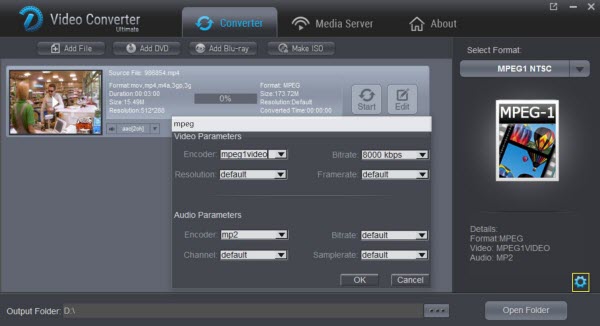
    • To insert and play AVI in PowerPoint for Windows, converting MP4 to MPEG-1 is recommended, you may also try WMV, AVI, ASF as the output video format.  For PowerPoint 2013 and later version, you can select MP4 format which has already been preset as H.264/AAC by default. 
    • To add and play AVI in PowerPoint for Mac, converting AVI to MOV or H.264 MP4 is recommended.
    3. Edit the AVI videos (Optional)

    Click the "Edit" button and edit your videos before processing format conversion. There are main seven functions available: Trim, Adjust, Watermark,  Effect and 3D. When enter the edit > Trim interface, you should either drag the slider bar back and forth or set the start time and the end time for the video to get the part you want. 

    4. Do video/audio settings (Optional)

    This AVI to PPT converter looks to be a simple program until you see all the rather complex advanced options hidden away in the "Setting" button, where there has support of configuration for each of the variety of video formats and codecs.


    In addition to converting AVI to PowerPoint video, the program has presets from columns on the left side for dozens of popular devices like the iPad, iPhone, TV, VR and many more. Just select a preset and it will fill in all the settings for you accordingly.

    4. Start the conversion

    Click "Start" to begin converting AVI to PowerPoint compatible video files. After the conversion, you will get the desired videos in the destination folder.

    Part II. Insert your converted AVI video to PowerPoint

    Before starting adding video to PowerPoint, you need to create a folder and put both your converted video and your PowerPoint presentation in this folder. Then open the PowerPoint in this folder to insert the converted video file which is just located in this folder.

    Open your PowerPoint presentation and click "Insert".
    • For PowerPoint 2013, click the Video drop-down arrow, then select Video on My PC. Locate and select the desired video file, then click Insert. 
    • For PowerPoint 2007, choose Movie and select the video clips. 
    • For PowerPoint 2003, select "Movie and Sounds" > "Movie from File" to choose the video clips.

    In this way, you can play any kind of AVI file in PowerPoint without the limitation! The workflow is convenient and flexible in spite of the PowerPoint version you are using. Now, everything should run as smooth as clockwork. Just enjoy your vivid PowerPoint slide presentation. 

    So here is the whole tutorial. Hope you have found the solution for your question and if you thnk it's helpful, please share the tip with others. 
    Free Download or Purchase Dimo Video Converter Ultimate:


    Need the lifetime version to work on 2-4 PCs so that your friends and family can instantly broaden their entertainment options? Please refer to the family license here. 


    Kindly Note:

    The price of Dimo Video Converter Ultimate for Windows is divided into 1 Year Subscription, Lifetime/Family/Business License: $43.95/Year; $45.95/lifetime license; $95.95/family license(2-4 PCs); $189.95/business pack(5-8 PCs). Get your needed one at purchase page.

    Contact us or leave a message at Facebook if you have any issues.

    Related Articles: