Thursday, May 4, 2017

Why can’t I add AVI to PowerPoint for presentation?

Found some torrent movies or TV shows in AVI format, or some family AVI footages from your digital camcorders or mobile phone that is perfect for your PowerPoint presentation and would like to embed it  to make the PPT more interesting and appealing? However, many people encountered error message when they tried to insert the AVI video file into PowerPoint slide, no matter PowerPoint 2016, 2010, 2003, 2007 or lower version. Things could get even worse, you successfully add an AVI movie in PowerPoint, but you still get a "Cannot play back the file. The format is not supported" message when you play the video during a presentation. Well, read on to learn detailed reason and solution.

Why we can't insert an AVI video into PowerPoint PPT successfully?

First, look at the best Video Formats for PowerPoint:

The best video formats for PPT can be varied depending on what version of PowerPoint and what computer system you are using. Here is a concise list:

1. PowerPoint 2007 and lower version 

According to Microsoft, PowerPoint 2007 and lower version only support WMV, AVI, ASF, and MPG (MPEG-1) video formats,  However,   some .avi files may require additional codecs, if your computer doesn't install according video and audio codec, the AVI video embed may cannot playback in PowerPoint 2007/2003/2002/2000/97/95.

For the best video playback experience,
  • If you are using a Windows 8 or Windows 10 computer, we recommend you to use .mp4 videos encoded with H.264 video and AAC audio to inserted to PowerPoint 2013.
  • If you a Windows 7 or Windows Vista or Windows XP computer, we strongly recommend you to use WMV or MPEG-1 videos.
2. PowerPoint 2010 

Only support .mp4, .mov, and .qt formats if the Apple QuickTime player is installed. That's why you can't play AVI in PowerPoint 2010.

3. PowerPoint 2013 or 2016

Only support .mp4 videos encoded with H.264 video (a.k.a. MPEG-4 AVC) and AAC audio. That's why you can't play AVI in PowerPoint 2013 or 2016.

In order to play all kinds of AVI in PowerPoint with no restriction, the simple and efficient way is to convert AVI to WMV (with WMV8 codec), AVI (with some ancient codec) or MPG format, which are universal formats among all versions of PowerPoint. This solution will ensure that you can insert any AVI files into PowerPoint slide for playing successfully. Here are two parts to finish your task. 

Part I. Convert AVI to PowerPoint supported video formats


This is a nice small video converter took kit that is just the right AVI to PowerPoint Converter which can convert all kinds of AVI to PowerPoint supported WMV, AVI, MPG, MP4. Besides converting AVI to PowerPoint, it also helps to convert any other video formats including MOV, MKV, FLV, MP4, VOB, 3GP, MXF, MTS, AVCHD, WebM, and etc to PowerPoint video or audio format. It even supports to convert FLAC, OGG, AC3, etc to PowerPoint compatible AIFF, MP3, WMA, WAV, AU. with fast encoding speed and excellent output quality. After the conversion, you can easily use your movie files in any version of PowerPoint Presentation including PowerPoint 2016, 2010, 2007, 2003, 2000, 2002, 2005 or even PowerPoint 95, 97. 

It also features basic editing features such as trimming, rotating, cropping, watermarking, adding effecting, 3D creating. By using the trimming action you can clip a specific duration from a video clip and turn it into PowerPoint preferred format. Now just get the right version and follow the guide below to convert AVI to PowerPoint supported video formats.

Free Download Dimo Video Converter Ultimate (Win/Mac):

          

Other Download: 
Simple clicks to convert AVI to PowerPoint supported formats

1. Load AVI videos

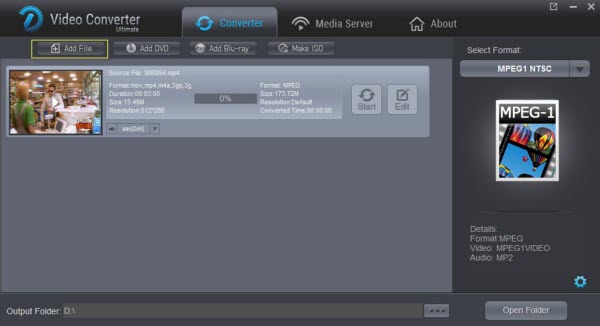
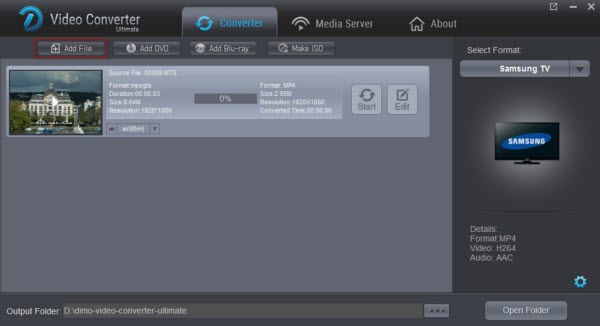
Click the"Add File" button to load AVI files from your computer or other devices like USB device, camcorder, AVI player, etc. You can also directly drag the files you want to convert to the main interface. Double click the video to preview it with the built-in AVI player. 


2. Select output format

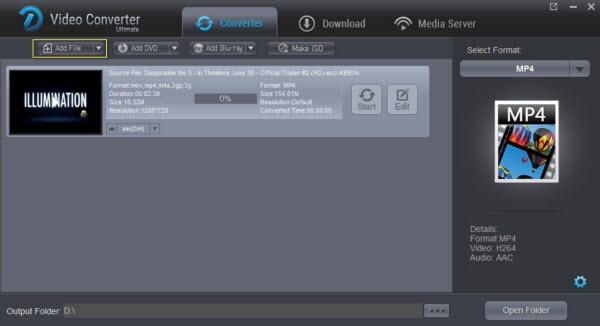
Click Select Format bar and choose PowerPoint supported video format as output format.

Tips:
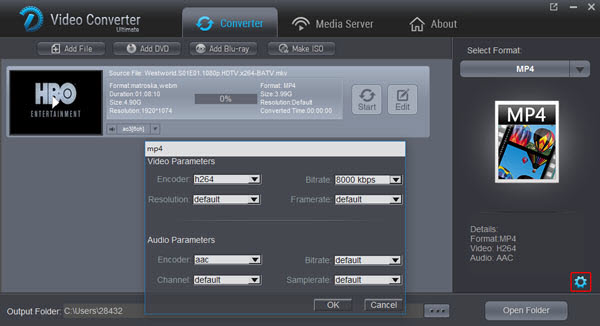
  • To insert and play AVI in PowerPoint for Windows, converting MP4 to MPEG-1 is recommended, you may also try WMV, AVI, ASF as the output video format.  For PowerPoint 2013 and later version, you can select MP4 format which has already been preset as H.264/AAC by default. 
  • To add and play AVI in PowerPoint for Mac, converting AVI to MOV or H.264 MP4 is recommended.
3. Edit the AVI videos (Optional)

Click the "Edit" button and edit your videos before processing format conversion. There are main seven functions available: Trim, Adjust, Watermark,  Effect and 3D. When enter the edit > Trim interface, you should either drag the slider bar back and forth or set the start time and the end time for the video to get the part you want. 

4. Do video/audio settings (Optional)

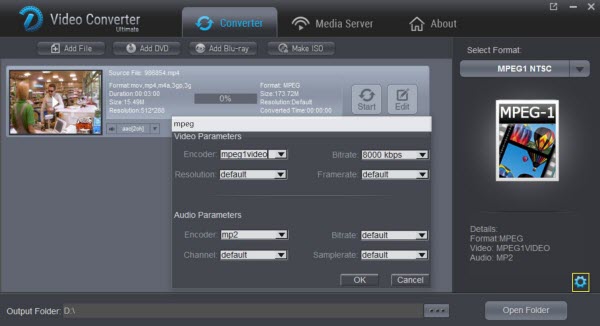
This AVI to PPT converter looks to be a simple program until you see all the rather complex advanced options hidden away in the "Setting" button, where there has support of configuration for each of the variety of video formats and codecs.


In addition to converting AVI to PowerPoint video, the program has presets from columns on the left side for dozens of popular devices like the iPad, iPhone, TV, VR and many more. Just select a preset and it will fill in all the settings for you accordingly.

4. Start the conversion

Click "Start" to begin converting AVI to PowerPoint compatible video files. After the conversion, you will get the desired videos in the destination folder.

Part II. Insert your converted AVI video to PowerPoint

Before starting adding video to PowerPoint, you need to create a folder and put both your converted video and your PowerPoint presentation in this folder. Then open the PowerPoint in this folder to insert the converted video file which is just located in this folder.

Open your PowerPoint presentation and click "Insert".
  • For PowerPoint 2013, click the Video drop-down arrow, then select Video on My PC. Locate and select the desired video file, then click Insert. 
  • For PowerPoint 2007, choose Movie and select the video clips. 
  • For PowerPoint 2003, select "Movie and Sounds" > "Movie from File" to choose the video clips.

In this way, you can play any kind of AVI file in PowerPoint without the limitation! The workflow is convenient and flexible in spite of the PowerPoint version you are using. Now, everything should run as smooth as clockwork. Just enjoy your vivid PowerPoint slide presentation. 

So here is the whole tutorial. Hope you have found the solution for your question and if you thnk it's helpful, please share the tip with others. 
Free Download or Purchase Dimo Video Converter Ultimate:


Need the lifetime version to work on 2-4 PCs so that your friends and family can instantly broaden their entertainment options? Please refer to the family license here. 


Kindly Note:

The price of Dimo Video Converter Ultimate for Windows is divided into 1 Year Subscription, Lifetime/Family/Business License: $43.95/Year; $45.95/lifetime license; $95.95/family license(2-4 PCs); $189.95/business pack(5-8 PCs). Get your needed one at purchase page.

Contact us or leave a message at Facebook if you have any issues.

Related Articles:

Tuesday, May 2, 2017

How to Solve VLC Won't Play MKV Video Files

Since VLC becomes a popular open source multimedia player, many people have been wondering "Can VLC Player Play MKV files?" Does VLC play MKV video? According to From VideoLAN official website, we learn that MKV is really one of VLC Player supported video formats. However, sometime we still fail to play MKV in VLC. Common issues have often troubled many guys: "Can't hear the sound of MKV files at all", "VLC stuttering or choppy when playing MKV" or "VLC just load MKV file all the time". In this article, we aim to work out possible 3 solutions to help you play MKV with VLC Media Player smoothly.


How to Play All Kinds of MKV in VLC Media Player?

Solution 1: Convert MKV to VLC Player more compatible formats - Convenient Way

Since MKV is a container format which may contain multiple video and audio streams. And the video and audio stream can be encoded any of several ways. If the MKV video or audio codec is not VLC Player supported one, VLC Media Player won't play MKV video of this kind. In order to solve "VLC Media Player won't play MKV files and to successfully play any MKV video in VLC Media Player, we had better convert MKV to VLC most supported video format like MP4 for smooth playback instead of downloading a codex bundle.

Here Dimo Video Converter Ultimate is recommended to help you achieve the goal. It is one of the top video converters for Windows 10, 8, 7, etc. With this software in hand, you can convert any videos including MP4, MKV, AVI, VOB, Tivo, MTS, MXF, MOV, MPG, etc. to VLC supported file formats. 

Moreover, it can help compress 1080p HD, 4K UHD videos for smooth playback on your media player or multimedia devices with minimum quality loss. It is very efficient since it allows you to convert either the whole video or parts of it. You can also crop the video to get your desired results.  you are Mac users, please turn to the equivalent Mac version named Dimo Video Converter Ultimate for Mac to transcode .mkv files to VLC on Mac OS X (Sierra, El Capitan included). If you're stuck in VLC media player, just download it and start the conversion following the tutorial below. 
Free Download Dimo Video Converter Ultimate (Win/Mac):

          

Other Download: 
How to convert MKV to VLC Media Player

STEP 1. Add MKV video

Start up the MKV to VLC Media Player converter, and then click "Add File" to import all .MKV files.  


STEP 2. Choose VLC's feasible format as output format

Click the "Select Format" menu, select VLC Media Player friendly format as your output video format. There, you can take MP4, AVI or MKV from "Format > Video" as your output video format. If you prefer high definition videos, move your mouse pointer to "Format > HD Video" and then choose HD MP4, HD AVI or HD MKV.

Tip 1: The smart MKV file converter additionally offers some useful edit functions to enhance your video. Click the Edit button to get it.

Tip 2: You can adjust the parameters by clicking "Settings" button, choose the resolution, bitrate, frame rate as you want.


STEP 3. Start converting MKV to VLC Media Player

Click "Start" button to start MKV conversion for playing with VLC Media Player. The conversion process will take a while, and you'll see an encoding progress bar. Once finished, click the Open button in the main interface and you can locate the encoded MKV files effortlessly. And then you are able to add them to your VLC for playback easily without any issues.

Solution 2. Seek for A VLC Alternative - Fast way

Rather than asking "Does VLC play MKV?", "How can I import MKV to VLC?", "How to stop VLC freezing", why not switch to another media player as so many good players are available out there. Here 8K Player for Win/Mac will definitely worth a shot. As an all-around free media player, it can freely open and play all SD/HD/4K/8K videos and audios in MKV, MP4, AVI, WMV, MOV, MP3, FLAC, etc smoothly! No need to install any codec packs, plug-ins or components. If you need to play Blu-ray or DVD discs, you can free download the 8K Player Blu-ray Power to have a try.

Free Download 8K Player for Win/Mac (Blu-ray Power) :


Solution 3: Install appropriate codec pack - A Universal Solution

There are various free codec packs online which will allow us to decode and play MKV files. The disadvantage of this approach is that you have to download a lot of codecs but if you are only trying to play one type of video file. It is hard to find the right encoder for each MKV video. Another shortcoming is these codecs not always work well as MKV videos always been encoded in several ways.

Other solutions you may need:

VLC Player No Sound Solution: Solution 1, Unmute your VLC Player; Solution 2, select Tools > Preferences menu to open Preferences dialog, select Audio on the left, and confirm Enable audio is checked. Then Click Output module drop-down button and try a different default.

MKV Skipping Solution: Select Tools > Preferences menu to open Preferences dialog, then select All at the bottom of the dialog, and then select Input/Codecs on the left. On the right of the dialog, in Advanced group, set the value of File caching to 1000.

Choppy Solution: Try to disable hardware decoding. Go to Tools > Preferences menu, select Input/Codecs > Video codecs > FFmpeg. And then set the value of Hardware decoding to Disable in Decoding group.

For users who prefer to stick with VLC and do not want to convert MKV to VLC supported formats or use another MKV Player either, there are left with no choice but to tweak some settings with VLC itself or disable the hardware decoding. But it does not always work out and you may get confused if setting stuff is totally new to you. So tohelp you with can't play MKV in VLC Media Player playback trouble, finding an MKV Player alternative or MKV Converter will be more effective.

Free Download or Purchase Dimo Video Converter Ultimate:

          

Need the lifetime version to work on 2-4 PCs so that your friends and family can instantly broaden their entertainment options? Please refer to the family license here. 


Kindly Note:

The price of Dimo Video Converter Ultimate for Windows is divided into 1 Year Subscription, Lifetime/Family/Business License: $43.95/Year; $45.95/lifetime license; $95.95/family license(2-4 PCs); $189.95/business pack(5-8 PCs). Get your needed one at purchase page.


Related Software:

BDmate (Win/Mac)

Lossless backup Blu-ray to MKV with all audio and subtitle tracks; Rip Blu-ray to multi-track MKV; ConvertBlu-ray to almost all popular video/audio formats and devices; Copy Blu-ray to ISO/M2TS; Share digitized Blu-ray wirelessly.

DVDmate (Win/Mac)

A professional DVD ripping and editing tool with strong ability to remove DVD protection, transcode DVD to any video and audio format, and edit DVD to create personal movie.

Videomate (Win/Mac)

An all-around video converter software program that enables you to convert various video and audio files to formats that are supported by most multimedia devices.

Contact us or leave a message at Facebook if you have any issues.

Related Articles:

Thursday, April 27, 2017

Easily Downscale 4K to 1080p in Mac


In this article, you are going to learn how to easily convert/downscale 4K video to 1080p on macOS Sierra with fast encoding speed.

It's incredible to live in the make-believe world where everything looks beyond imagination, especially for the video creators and movies buffs looking to make the move to ultra pixel-heavy content, then Mac computer including MacBook Pro 2016 and iMac Retina pairs an illustrious 4K display with a heaping deal of screen real estate to boot. To watch 4K UHD movies on MacBook(Pro/Air, iMac 4K etc.), you need: 4K movie player for Mac, 4K movie resources, and maybe a 4K video converter for Mac(OS Sierra supported).


1. Top 4K movie player for Mac 

a. VLC Player

VLC gets a got a boost and updated its support to cover 4K videos playback, as well as 8K video playback. Besides, this 4k video player software runs on both Mac and Windows for free.

b. DivX Player

The HD and UHD playback capabilities amaze you with the superb quality of the videos, make DivX player a popular 4k player for Windows & Mac.

c. Dimo Player for Mac/8K Player for Mac

Dimo Player for Mac is a free 4K video player to play 4K/8K/1080p/720p HD videos, 3D Blu Ray videos and play 360 degree virtual reality videos, MKV, MTS, M2TS, AVCHD, MP4 MOV, AVI videos, DVD on iMac 4K/5K Retina and Windows (10) smoothly & clearly!

d. 8K Player for Mac

Here 8K Player for Mac or 8K Player (Blu-ray Power version) is a piece of professional free 4K player softwareto read 4K information and support 4K playback on MacBook Pro and MacBook Air. It can also play URL=http://iskyshare.com/backup-blu-ray-on-mac/]Blu-ray discs, DVD, DVD ISO files and other HD/SD video or audio formats. 

Free Download 8K Player for Mac or 8K Player (Blu-ray Power):


2. Best 4K video converter for Mac

Since not all high quality 4K movies can be accepted by 4K video players above, a one-stop solution is to transcode 4K videos first to let them compatible with Mac video playback requirements. Any Tool to Convert/Compress 4K Ultra HD Videos? 

Thankfully, there are plenty of great 4K transcoding utilities on Mac designed to make the process easy and give you files that are playable on any device you choose, whenever you choose to watch them. According to the feedbacks of dozens of users, they unanimously recommend the award-winning Mac 4K video compressor - Dimo Video Converter Ultimate for Mac (or Windows version). 

Why this video converter for 4K wins so many users' favor? That's because: 

a. Convert & compress 4K UHD to 1080P 720P HD SD videos without quality loss.
b. Encode and share 4K videos to iPhone 7/7 Plus, Galaxy S7 Edge, iPad Pro/Mini 4 etc.
c. Transcode 4K to Apple Prores for FCP, DNxHD for Avid MC, MPEG-2/MOV for Premiere Pro, etc.
d. Make ISO from downloaded 4K UHD videos from YouTube or shot by Canon/Panasonic/Sony cameras in one click.
e. Take snapshot on-screen 4K movies, videos.
f. Edit 4K videos: trim/crop videos, add effect/watermark, create 3D. 
g. This Ultra HD Video Converter is also available to customize the output resolutions to any size the users want.  

Free Download Dimo Video Converter Ultimate for Mac/Win:


Other Download: 

How to convert or compress 4K UHD on macOS Sierra

STEP 1. Load the 4K videos to the program

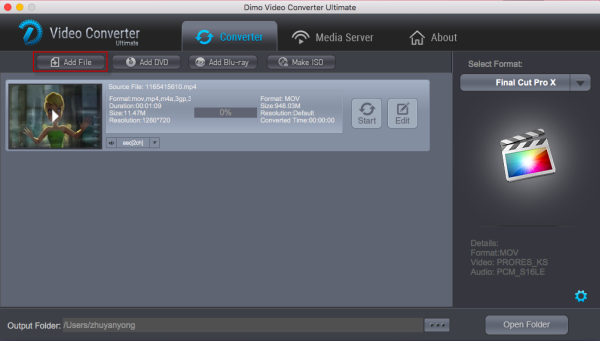
Install and run the best 4K Video Converter for Mac, and then import the source 4K videos to it. To do so, you can directly drag & drop the files onto the main interface, or you can click the "Add File" icon on the upper left to locate the videos from your local disk. 


STEP 2. Set output video format

4K movie converter supports a wide range of output video formats optimized for all popular mobile devices, applications and more. To convert 4K video, just choose a proper output format in the "Select Format" profile list according to your need. For example:

a. To import 4K camcorder footages like XAVC/XAVC S to FCP for post production, choose "Format" >"Editor" > "Final Cut Pro 7" or "Final Cut Pro X".

b. To enjoy 4K videos/4K YouTube on portable devices like iPhone/iPad/iPod, choose "Device" > "Apple", from where you can find a proper video format for your iOS devices.

c. To transfer 4K video to 4K TVs, choose the output format that your TV supports from the "Device" > "TVS" tab.

бн

STEP 3. 4K Video Settings

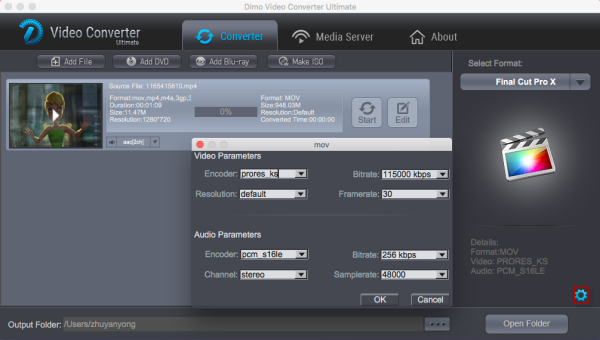
Click "Settings" button if you'd like to customize advanced audio and video parameters like Video Codec, aspect ratio, bit rate, frame rate, Audio codec, sample rate, audio channels. Note: If you want to get original 4K resolution, just keep the video size as original.


STEP 4. Begin to convert 4K videos

When you finish the settings, you can press the big "Start" button to kick off the conversion. By using future-proof technology, the conversion will be finished with ultrafast speed and the best video quality kept. After the conversion, you can then play, edit, share the 4K videos anywhere you prefer from Mac (MacBook Pro/Air/iMac).

3. Where to Get 4K Video Content?

a. 4K camcorders

With the number of 4K-capable cinemas already high and growing fast, more and more new films are either being converted into 4K Ultra HD digital masters from 35mm celluloid, or filmed directly in the 4K digital format using a new generation of 4K-capable digital cameras or camcorders.

Which camcorders can produce "4K videos"?

Sony: FS700, CineAlta F5, CineAlta F55, CineAlta F65
Canon: EOS C500, EOS-1D C DSLR
Astrondesign AH-4413, Point Grey Flea3 8.8 MP, GoPro HERO3 Black, Nvidia GTX Titan, AMD Radeon HD 7970

a. 4K Online Provides

Netflix became the first to deliver 4K video samples since April 2014. When you open the Netflix app on a 4K TV, 4K content will stream automatically where it's available. Started with House of Cards Season 2, a lot more content like documentaries are rolling out. Second comes YouTube. As the biggest video sharing site, rich 4K videos and movies are offered on YouTube. And also a nascent 4K channel has been established.  

Free Download or Purchase Dimo Video Converter Ultimate for Mac/Win:


Need the lifetime version to work on 2-4 Macs so that your friends and family can instantly broaden their entertainment options? Please refer to the family license here. 


Kindly Note:

The price of Dimo Video Converter Ultimate for Mac is divided into 1 Year Subscription, Lifetime/Family/Business License: $43.95/Year; $45.95/lifetime license; $95.95/family license(2-4 Macs); $189.95/business pack(5-8 Macs). Get your needed one at purchase page.

Related Software:

BDmate (Mac/Win)

Lossless backup Blu-ray to MKV with all audio and subtitle tracks; Rip Blu-ray to multi-track MP4; Convert Blu-ray to almost all popular video/audio formats and devices; Copy Blu-ray to ISO/M2TS; Share digitized Blu-ray wirelessly.

DVDmate (Mac/Win)

A professional DVD ripping and editing tool with strong ability to remove DVD protection, transcode DVD to any video and audio format, and edit DVD to create personal movie.

Videomate (Mac/Win)

An all-around video converter software program that enables you to convert various video and audio files to formats that are supported by most multimedia devices.

8K Player (Mac/Win)

A mixture of free HD/4K video player, music player, Blu-ray/DVD player, video recorder and gif maker. 

Contact us or leave a message at Facebook if you have any issues.

Related Articles:

Monday, April 17, 2017

How to Play QuickTime MOV files on WDTV from USB


In general, WDTV doesn't support MOV(QuickTime) files from USB. Fortunately, there is an easy way to fix the issue. Find it out here.


If you have used WDTV, you will be more and more like it, for me, I think it is very realistic color.We always meet some video, we need it, like to watch it, but WTDV does not support playback, this is what we need video converter

Can't watch the QT MOV files on your WDTV via USB? That happens and as common, not only to you!  Well,  MOV stands for apple QuickTime movie, common multimedia compressing method developed by apple and your WDTV just won't be able to recognize all of them. So, it's better to try out the easier and quicker way below, so that you can freely play QuickTime mov on WDTV with family and friends (Samsung TV included).


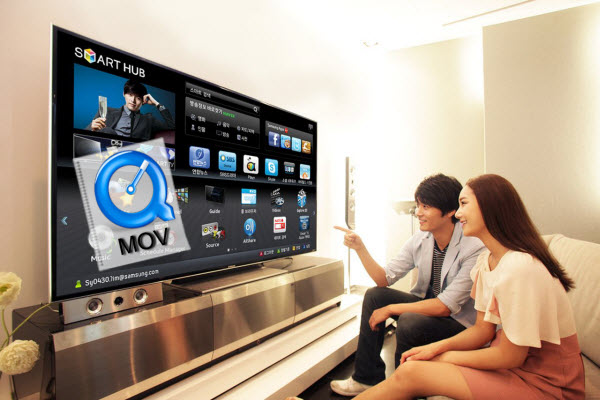
a MOV is just a container format, holding video, audio, image or subtitle files in it. The video and audio files in different MOV files can be encoded with different codecs. Apple only produces a QuickTime plug-in for Mac OS X and Windows, and hasn't developed a QuickTime application for TV. It's no way to play MOV on Samsung/LG/Sony/Panasonic 3D, HD, Ultra HD, LED Smart TV. If you want to get MOV files onto TV, you need convert MOV (QuickTime) to TV friendly format i.e. MP4 and then get it play.

To achieve the goal, we just need to get some help from a small video converter program called Dimo Video Converter Ultimate, which is skilled at offering a hassle-free way to convert or encode your QT MOV into TV format in just 3 simple steps and do media sharing to TV wirelessly in a breeze. The MOV to TV converting software is able to effortlessly convert QuickTime MOV, as well as AVI, VOB, TiVo, FLV, MTS to TV friendly file formats like H.264 .mp4 without any quality loss. Plus, it offers kinds of preset profiles for Samsung/LG/Sony/Panasonic TV, Apple TV, iPad, iPhone, VR, etc to meet your different needs. If you are a Mac user, please turn to Dimo Video Converter Ultimate for Mac. Below is a brief how-to.

Free Download Dimo Video Converter Ultimate (Win/Mac):


Other Download: 
Step-by-step guide to convert QuickTime mov to play on TV 

Step 1. Import QT MOV to the converter

Launch Dimo MOV converter for TV and click the "Add File" button to load the files that you want to convert. Another method to import files is the simple drag-and-drop operation. 


Step 2. Specify an output format

Now you need to choose an output format. This MOV Converter has already preset the compatible format for TV so that you can directly find your TV model as the output format via "Select Format"> "Device" > "TVS" > "Samsung/LG/Sony/Panasonic TV". 


Tips:

1. Before start the MOV conversion for TV, you can click the Settings icon and adjust the video size, video bitrate, codec, frame rate, audio sample rate, etc parameters, so that you can get a decent video on your Smart TV. 

If your QuickTime file is encoded by H.264, then you can adopt the zero-quality conversion mode. That means the conversion will be carried out on your source files without decoding. Hence, keeping your original file intact. However, if your MOV file is encoded by other codecs, you can also adjust the video parameters to minimize the quality lost during conversion.

2. By clicking "Edit" button, you can edit MOV files like trimming, cropping the video, or adding watermark, adjust effect or adding 3D effect to the videos which you will convert. 

Trim – Choose to reserve the part you need. Just choose the chapter which you need to trim, to set "start time" or "end time", type the portion which you want to save.

Crop – Remove black edges of your video or just get the scale of this video you want.

Effect – Adjust the effects by adjusting the parameters, such as: Deinterlacing – If there are some stripes on the picture, you can check this option to make a better picture effect.

3D- If you want to get 3D effect, just enable this fuction and do settings.

Step 3. One click to begin converting MOV to TV (Samsung TV included) 

Now simply hit the "Start" button to start and finish the MOV to TV video format conversion. After the conversion, connect the USB drive with computer and head to the destination folder where the converted files are stored; transfer the files to the USB drive or directly share them to TV via wifi, then playback your MOV files on TV set (such as Samsung TV, Sony 3D LED LCD HDTVs, Samsung, Panasonic, Toshiba, LG, Sharp and other HDTVs) with perfect effect.

That's all the steps you need to follow to convert QuickTime MOV video files for TV. It's easy as ABC, right? Download to test it now.
Free Download or Purchase Dimo Video Converter Ultimate:

          

Need the lifetime version to work on 2-4 PCs so that your friends and family can instantly broaden their entertainment options? Please refer to the family license here. 


Kindly Note:

The price of Dimo Video Converter Ultimate for Windows is divided into 1 Year Subscription, Lifetime/Family/Business License: $43.95/Year; $45.95/lifetime license; $95.95/family license(2-4 PCs); $189.95/business pack(5-8 PCs). Get your needed one at purchase page.

Related Software:

BDmate (Win/Mac)

Lossless backup Blu-ray to MKV with all audio and subtitle tracks; Rip Blu-ray to multi-track MP4; ConvertBlu-ray to almost all popular video/audio formats and devices; Copy Blu-ray to ISO/M2TS; Share digitized Blu-ray wirelessly.

DVDmate (Win/Mac)

A professional DVD ripping and editing tool with strong ability to remove DVD protection, transcode DVD to any video and audio format, and edit DVD to create personal movie.

Videomate (Win/Mac)

An all-around video converter software program that enables you to convert various video and audio files to formats that are supported by most multimedia devices.

8K Player (Win/Mac)

A mixture of free HD/4K video player, music player, Blu-ray/DVD player, video recorder and gif maker. 


Important: Some versions of the WD Elements Play user manual incorrectly states that the device supports DIVX encoded videos. We apologize for any confusion this may have caused.

Video
Extension FilenameContainer FormatCodecSupportedLimitation
(Supported up to)
.mpgMPEG-PSVideo CodecMPEG-1YES1920*1080 30fps
MPEG-2YES
Audio CodecMPEGYES
MP3YES
MP2YES
PCMYES
DTSNO
Dolby DigitalYES
.mpegMPEG-PSVideo CodecMPEG-1YES1920*1080 30fps
MPEG-2YES
Audio CodecMPEGYES
MP3YES
MP2YES
PCMYES
DTSNO
Dolby DigitalYES
.m2aMPEG-PSVideo CodecMPEG-1YES1352*240 30fps
Audio CodecMPEG
.mlvMPEG-PSVideo CodecMPEG-1YES1352*240 30fps
Audio CodecMPEG
.mpvMPEG-PSVideo CodecMPEG-1YES1352*240 30fps
Audio CodecMPEG
.datCDXA/MPEG-PSVideo CodecMPEG-1(VCD/SVCD)YES
720*576 30fps
Audio CodecMPEG
.vobMPEG-PSVideo CodecMPEG-1(VCD/SVCD)YES720*576p 30fps or 720*480p 30fps
Audio CodecMPEGYES
LPCMYES
PCMYES
Dolby DigitalYES
DTSNO
.tsMPEG-TSVideo CodecMPEG-1(VCD/SVCD)YES1920*1080 30fps
AVC(H.264)YES
Audio Codec
MPEGYES
MP3YES
MP2YES
PCMYES
DTSNO
Dolby DigitalYES
.tpMPEG-TSVideo CodecMPEG-1YES1920*1080 30fps
Audio CodecMP2YES
Dolby DigitalYES
.trpMPEG-PSVideo CodecMPEG-2YES1920*1080 30fps
Audio CodecMP2YES
.mp4MPEG-4Video CodecMPG1YES1920*1080 30fps
MPEG-4YES
MP4VYES
MP42YES
AVC(H.264)YES
Audio CodecAAC-LCYES
.aviAVIVideo Codec1920*1080 30fps
XvidYES
MPG1YES
MPG2YES
AVC(H.264)YES
MJPEG-AYES
MJPEG-BYES
Audio CodecMPEGYES
MP2YES
MP3YES
LPCMYES
PCMYES
Dolby DigitalYES
DTSNO
VorbisYES
AACYES
AAC-LCYES
WMAYES
.movQuicktimeVideo CodecMPEG-4YES1920*1080 30fps
MJPEG-AYES
MJPEG-BYES
MJPAYES
H.263YES
AVC(H.264)YES
Audio CodecMPEGYES
ADPCMYES
U-LAWYES
AAC-LCYES
AACYES
PCMYES
.3gpMPEG-4Video CodecMPEG-4YES640*480 30fps
H.263YES
Audio CodecAMR WAYES
AMR NAYES
.isoISOVideo CodecMPEG-2(DVD)YES720*576p 30fps or 720*480p 30fps
Audio CodecMPEGYES
LPCMYES
PCMYES
Dolby DigitalYES
DTSNO
.imgIMGVideo CodecMPEG-2(DVD)YES2720*576p 30fps or 720*480p 30fps
Audio CodecMPEGYES2
LPCMYES2
PCMYES2
Dolby DigitalYES2
DTSNO
.mkvMatroskaVideo Codec1920*1080 30fps
XvidYES
RealVideoYES
AVC(H.264)YES
MPEG-4YES
Mpeg-2YES
mpegYES
Audio CodecAACYES
AAC-LCYES
MP3YES
CookerYES
VorbisYES
Dolby DigitalYES
FLACYES
DTSNO
WMAYES
.rm/.rmvbRealMediaVideo CodecRV40YES1280*720 30fps
RV30YES
Audio CodecReal Audio cookerYES
Real Audio 10YES
AACYES
AAC-LCYES
.m2tsBDAVVideo CodecMPEG-2YES1920*1080 30fps
Audio CodecPCMYES
DTSNO
Dolby DigitalYES
.qtQuickTimeVideo CodeccvidYES1920*1080 30fps
AVCYES
Audio CodecPCMYES
AACYES
.m4vMPEG-4Video CodecAVCYES720*480 24fps
Audio CodecDolby DigitalYES
.modMPEG-PSVideo CodecMPEG-2YES704*480 24fps
Audio CodecDolby DigitalYES
.flvFlash VideoVideo CodecH.263YES720*576 24fps
AVCYES
Audio CodecMP3YES
AACYES
.3g2MPEG-4Video CodecMPEG-4YES352*288 30fps
Audio CodecAACYES
.m4bAVIVideo CodecXviDYES1920*1080 30fps
Audio CodecAACYES
.m4pAVIVideo CodecXviDYES1920*1080 30fps
Audio CodecAACYES
1 After renaming file to .mpeg
2 After renaming file to .iso

Music
Extension FilenameContainer FormatCodecSupportedLimitation
.mp2MPEG AudioLayer 2YESSupported up to 32Kbps-320Kbps
.mp3MPEG AudioLayer 1YESSupported up to CBR/VBR 32Kbps-320kbps 8-48KHz
Layer 2YES
Layer 3YES
MPEG2.5YES
.wavWavePCMYESSupported up to 32kbps-192Kbps
LPCMYES
ADPCMYES
.pcmWavePCMYES1411.2 Kbps 44.1 KHz stereo
.adpcmWavePCMYES1411.2 Kbps 44.1 KHz stereo
.aacADTSAAC-LCYESSupported up to 8-48KHz
.m4aALACAAC-LCYESSupported up to 8-48KHz
.m4rMPEG AudioAAC-LCYESSupported up to 8-48KHz
.flacFLACFLACYESSupported up to 8-48KHz
.wmaWindows Media AudioWMA 2YES32Kbps-320Kbps
.apeMonkey's AudioMonkey's AudioYESSupported up to 8-44.1KHz
.oggOGGogg VorbisYESSupported up to 8-48KHz
.mpaMPEG AudioLayer 2YES224 Kbps 44.1 KHz stereo

Pictures
Extension FilenameFormatSupportedLimitation
(Supported up to)
.jpeg (normal)JPEGYES13000*10000
.jpeg (progressive)YES1280*720
.jpeYES13000*10000
.jifYES501*506
.jfifYES4288*2848
.jfiYES501*506
.bmp (non-compressed)BMPYES8000*8000
.gif (static)GIFYES8000*8000
.giffYES900*600
.tiff (RGB)TIFFYES8000*8000
.tif (RGB)YES8000*8000
.png (Non-alpha)PNGYES8000*8000
Note:
Be sure to check our Downloads Library for for the latest firmware. You will also find release notes showing what functionality has been added with the update.


Contact us or leave a message at Facebook if you have any issues.

Related Articles: