Saturday, June 17, 2017

Easily Backup DVD to MKV with Multiple Audio and Subtitle Streams


When you own DVD movies, you want to make sure that nothing damages your precious investment. The best way to do it? Make a DVD backup copy to a digital file. The best way to do that? Generally, there are multiple audio tracks in the DVD movies, you maybe want to rip DVD with multiple subtitle and audio tracks while your DVD movies have several languages so that you can switch which language you can listen. The article will tell you how to solve the problem that rip DVD to Multi-track MKV video.


The MKV format can store multiple video/audio tracks with all meta-information and preserve chapters. There are many players that can play MKV files nearly on all platforms. Generally, there are multiple audio tracks in the DVD movies, and you can choose the audio track to play with the DVD player as you want. If you rip DVD to MKV video with multiple audio tracks to save DVD movies or watch the movies anywhere. 

The software Dimo Video Converter Ultimate can convert and convert DVD movies to MKV video with multiple audio tracks, so you may watch DVD discs with your favorite player on your favorite OS or on your favorite device. Besides, the product can also support lossless DVD to MKV backup. If you are Mac user, please turn to Dimo Video Converter Ultimate for Mac. 
Free Download Dimo Video Converter Ultimate (Win/Mac):


Other Download: 

How to Rip DVD to MKV with multiple audio tracks and subtile? 

Step 1. Install and launch the software.

Insert an DVD disc into the DVD drive, and click "Add DVD" button on the to load DVD video.


Step 2. Select output format.

Select the main title with multi-track and click the "Mutli-Track MKV" tap.


Step 3. Select the subtitle and audio track that you need


Step 4. Convert the video.

Click "Start" button to save multi-track MKV form DVD. After conversion, open the destination folder, you will find the converted multi-track MKV video for playing with multi-track player like 8K Player, VLC, etc.
Free Download or Purchase Dimo Video Converter Ultimate:


Need the lifetime version to work on 2-4 PCs so that your friends and family can instantly broaden their entertainment options? Please refer to the family license here. 


Kindly Note:

The price of Dimo Video Converter Ultimate for Windows is divided into 1 Year Subscription, Lifetime/Family/Business License: $43.95/Year; $45.95/lifetime license; $95.95/family license(2-4 PCs); $189.95/business pack(5-8 PCs). Get your needed one at purchase page.

Related Software:

BDmate (Win/Mac)

Lossless backup Blu-ray to MKV with all audio and subtitle tracks; Rip Blu-ray to multi-track MP4; ConvertBlu-ray to almost all popular video/audio formats and devices; Copy Blu-ray to ISO/M2TS; Share digitized Blu-ray wirelessly.

DVDmate (Win/Mac)

A professional DVD ripping and editing tool with strong ability to remove DVD protection, transcode DVD to any video and audio format, and edit DVD to create personal movie.

Videomate (Win/Mac)

An all-around video converter software program that enables you to convert various video and audio files to formats that are supported by most multimedia devices.

8K Player (Win/Mac)

A mixture of free HD/4K video player, music player, Blu-ray/DVD player, video recorder and gif maker. 

Contact us or leave a message at Facebook if you have any issues.

Related Articles:

Wednesday, June 14, 2017

How to Convert MP3 to AIFF in iTunes/WMP

Is it possible to convert MP3 to AIFF?

Converting MP3 to AIFF becomes easier when you use a powerful MP3 Converter like Dimo Video Converter Ultimate. MP3 is both a widely used format for audio streaming or storage. Most of the music we hear in daily life is compressed via MP3 format. Nearly all the electronic products such as Walkman, cellphones, tablets can play MP3 files. Even though MP3 is regarded as a lossy media format, it supports variety of Bitrate settings with flexibility to change audio encode settings. While Audio Interchange File Format (AIFF) is mainly used in Mac and other Apple devices. Find out more about how to use the top MP3 audio converter to Edit, Share or Convert MP3 files into AIFF with only 3 easy steps.


Best Tool to Convert MP3 to AIFF

Converting popular Audio formats like MP3 becomes easier when you use Dimo Video Converter Ultimate. It is the top-rated program in the market, which works as an editor, media player or converter. It is specially designed to suit the needs of professionals or novice users. Compared to other media converters, Dimo Video Converter Ultimate can convert any media format with no compromise in audio/video quality. Make sure that you use the original MP3 audio file to encode the audio files into AIFF to attain highest audio quality.

Plus, it is a leading audio/video converter for any type of multimedia conversions such as MP3 to AIFF, MP3 to FLAC, MP3 to AC3, MP3 to AAC, MP3 to AU, MP3 to M4A, MP3 to WAV and so on. After reading this unique article, you will surely become a Pro in converting MP3 files into AIFF. And you are allowed to customize Bitrate, Audio Compression, Sample Rate, Stereo Settings and so on easily. It's highlighting feature is that, you can download any MP3 file with its online downloader and then convert the MP3 file into AIFF easily. It is the best application for any commercial, non-commercial or personal use. If you are Mac user, please turn to Video Converter Ultimate for Mac.

Free Download Dimo Video Converter Ultimate (Win/Mac):


Other Download: 

The step of Converting MP3 to AIFF 

Step 1: Download and install Dimo Video Converter Ultimate, after it, you can launch the software and click the "Add Flie" to import the MP3 audio or dragging it to surface.


Step 2: Choose the AIFF for outputting format, and you can convert MP3 to AAC, AC3, M4A, etc. Use editing or customizing tools, to trim, change bitrate, audio codecs, sample rate or other default settings if required.


Step 3: Click the "Start" tap to convert the MP3 audio. Within few seconds, MP3 files will be converted into AIFF format. You can use the AIFF file for smooth playback in any device you want like iPhone, iPad, HTC, Samsung, etc.. If you want to extract audio files from MP4, AVI, VOB, WMV, you can use the software to get it.

Convert MP3 File to AIFF in iTunes (Optional)

iTunes is the most popular MP3 to AIFF converter as you can select any MP3 music file and convert it into AIFF format for perfect compatibility with your apple devices. By following these steps, you can convert any iTunes compatible audio file into AAC, Apple Lossless, AIFF, MP3 or WAV. Follow these steps to convert MP3 songs into AIFF file format via iTunes.

Step 1: Get iTunes and Select 'Preferences'

First of all, Open iTunes to start MP3 to AIFF Conversion. In iTunes, click on Edit tab to select 'Preferences'.

Step 2: Edit Import Settings and Select AIFF as Preferred Format

With this step, 'General Preferences' window will open, where you have to choose 'Import Settings' button and click OK. When you choose Import Settings button, it will open Import Settings window where you can select any audio encoder such as AAC Encoder, AIFF Encoder, Apple Lossless Encoder, WAV Encoder or MP3 Encoder. Choose AIFF encoder.

Step 3: Convert to AIFF Version

Select the MP3 song and then Select 'File' menu. Under 'File' menu, select 'Convert' and then choose 'Create AIFF Version' to initialize MP3 song to AIFF Conversion.

Free Download or Purchase Dimo Video Converter Ultimate:


Need the lifetime version to work on 2-4 PCs so that your friends and family can instantly broaden their entertainment options? Please refer to the family license here. 


Kindly Note:

The price of Dimo Video Converter Ultimate for Windows is divided into 1 Year Subscription, Lifetime/Family/Business License: $43.95/Year; $45.95/lifetime license; $95.95/family license(2-4 PCs); $189.95/business pack(5-8 PCs). Get your needed one at purchase page.

Related Software:

BDmate (Win/Mac)

Lossless backup Blu-ray to MKV with all audio and subtitle tracks; Rip Blu-ray to multi-track MP4; ConvertBlu-ray to almost all popular video/audio formats and devices; Copy Blu-ray to ISO/M2TS; Share digitized Blu-ray wirelessly.

DVDmate (Win/Mac)

A professional DVD ripping and editing tool with strong ability to remove DVD protection, transcode DVD to any video and audio format, and edit DVD to create personal movie.

Videomate (Win/Mac)

An all-around video converter software program that enables you to convert various video and audio files to formats that are supported by most multimedia devices.

8K Player (Win/Mac)

A mixture of free HD/4K video player, music player, Blu-ray/DVD player, video recorder and gif maker. 

Contact us or leave a message at Facebook if you have any issues.

Related Articles:

Friday, June 9, 2017

How to Play Blu-ray Movie on HTC U11

If you are the user of HTC U11, you want to convert Blu-ray to HTC U11 for watching anywhere with Blu-ray 1080p resolution we can get better visual enjoyment. But, most users don't know the way to transfer Blu-ray to HTC U11, as purchased Blu-ray movies are all copy protected and HTC Ull don't support all format. It means that the Blu-ray maybe not be palyed on HTC U11. Please don't worry, all you need is a Blu-ray Ripper software, which will help you to get rid of Blu-ray's copy protection and rip Blu-ray to HTC U11 supported video format, and the ripped files will have no protection, you can play ripped Blu-ray videos on any playable devices.


A good Blu-ray Ripper will help you to rip latest Blu-ray movies smoothly, here we would like to recommend the best Blu-ray Ripper software for you, the program is Dimo Video Converter Ultimate, which has  mac version, with this program you can rip Blu-ray to HTC U11 best video format, and you can rip Blu-ray to MKV, AVI, MP4, MOV, FLV, WMV, MPG or other any formats you want. Besides ripping Blu-ray disc movies, this software can also rip Blu-ray ISO image file, Blu-ray folder, or convert HD Videos like MKV, AVI, WMV, MOV, MPG, MTS, M2TS,  MXF, VOB,  etc. to editing programs, tablets, smartphones, HDTVs or any other formats.You can also download the video form the internet and share the located video with this software.

Free Download Dimo Video Converter Ultimate (Win/Mac):


Other Download: 

Easy way to rip Blu-ray to HTC U11 supported format

1. Please download and install this Blu-ray to HTC U11 Ripper on your computer and launch it.

2. Please click "Add Blu-ray" button to import Blu-ray disc movie that you want to rip. If you need to convert HD videos, please click “Add Files” button on the interface.


3. Select supported video format of HTC U11. Please press the format column and then you can choose rich output formats, to play Blu-ray on HTC U11 with compatible format, we recommend you to choose MP4 format from "Device > HTC", it is the best format for HTC U11.


4. Click "Start" button on the main interface of this HTC U11 Blu-ray Ripper, the software will begin the ripping process. After conversion, get ripped files for transferring to your Android phone.

Tips: It can also convert DVD disc to MP4, FLV, MOV,MKV, etc. and rip Blu-ray/DVD disc to many device such as, iPad, iPhone, Samsung. 


Free Download or Purchase Dimo Video Converter Ultimate:


Need the lifetime version to work on 2-4 PCs so that your friends and family can instantly broaden their entertainment options? Please refer to the family license here. 


Kindly Note:

The price of Dimo Video Converter Ultimate for Windows is divided into 1 Year Subscription, Lifetime/Family/Business License: $43.95/Year; $45.95/lifetime license; $95.95/family license(2-4 PCs); $189.95/business pack(5-8 PCs). Get your needed one at purchase page.

Related Software:

BDmate (Win/Mac)

Lossless backup Blu-ray to MKV with all audio and subtitle tracks; Rip Blu-ray to multi-track MP4; ConvertBlu-ray to almost all popular video/audio formats and devices; Copy Blu-ray to ISO/M2TS; Share digitized Blu-ray wirelessly.

DVDmate (Win/Mac)

A professional DVD ripping and editing tool with strong ability to remove DVD protection, transcode DVD to any video and audio format, and edit DVD to create personal movie.

Videomate (Win/Mac)

An all-around video converter software program that enables you to convert various video and audio files to formats that are supported by most multimedia devices.

8K Player (Win/Mac)

A mixture of free HD/4K video player, music player, Blu-ray/DVD player, video recorder and gif maker. 

Contact us or leave a message at Facebook if you have any issues.

Related Articles:

Thursday, May 4, 2017

Why can’t I add AVI to PowerPoint for presentation?

Found some torrent movies or TV shows in AVI format, or some family AVI footages from your digital camcorders or mobile phone that is perfect for your PowerPoint presentation and would like to embed it  to make the PPT more interesting and appealing? However, many people encountered error message when they tried to insert the AVI video file into PowerPoint slide, no matter PowerPoint 2016, 2010, 2003, 2007 or lower version. Things could get even worse, you successfully add an AVI movie in PowerPoint, but you still get a "Cannot play back the file. The format is not supported" message when you play the video during a presentation. Well, read on to learn detailed reason and solution.


Why we can't insert an AVI video into PowerPoint PPT successfully?

First, look at the best Video Formats for PowerPoint:

The best video formats for PPT can be varied depending on what version of PowerPoint and what computer system you are using. Here is a concise list:

1. PowerPoint 2007 and lower version 

According to Microsoft, PowerPoint 2007 and lower version only support WMV, AVI, ASF, and MPG (MPEG-1) video formats,  However,   some .avi files may require additional codecs, if your computer doesn't install according video and audio codec, the AVI video embed may cannot playback in PowerPoint 2007/2003/2002/2000/97/95.

For the best video playback experience,
  • If you are using a Windows 8 or Windows 10 computer, we recommend you to use .mp4 videos encoded with H.264 video and AAC audio to inserted to PowerPoint 2013.
  • If you a Windows 7 or Windows Vista or Windows XP computer, we strongly recommend you to use WMV or MPEG-1 videos.
2. PowerPoint 2010 

Only support .mp4, .mov, and .qt formats if the Apple QuickTime player is installed. That's why you can't play AVI in PowerPoint 2010.

3. PowerPoint 2013 or 2016

Only support .mp4 videos encoded with H.264 video (a.k.a. MPEG-4 AVC) and AAC audio. That's why you can't play AVI in PowerPoint 2013 or 2016.

In order to play all kinds of AVI in PowerPoint with no restriction, the simple and efficient way is to convert AVI to WMV (with WMV8 codec), AVI (with some ancient codec) or MPG format, which are universal formats among all versions of PowerPoint. This solution will ensure that you can insert any AVI files into PowerPoint slide for playing successfully. Here are two parts to finish your task. 

Part I. Convert AVI to PowerPoint supported video formats


This is a nice small video converter took kit that is just the right AVI to PowerPoint Converter which can convert all kinds of AVI to PowerPoint supported WMV, AVI, MPG, MP4. Besides converting AVI to PowerPoint, it also helps to convert any other video formats including MOV, MKV, FLV, MP4, VOB, 3GP, MXF, MTS, AVCHD, WebM, and etc to PowerPoint video or audio format. It even supports to convert FLAC, OGG, AC3, etc to PowerPoint compatible AIFF, MP3, WMA, WAV, AU. with fast encoding speed and excellent output quality. After the conversion, you can easily use your movie files in any version of PowerPoint Presentation including PowerPoint 2016, 2010, 2007, 2003, 2000, 2002, 2005 or even PowerPoint 95, 97. 

It also features basic editing features such as trimming, rotating, cropping, watermarking, adding effecting, 3D creating. By using the trimming action you can clip a specific duration from a video clip and turn it into PowerPoint preferred format. Now just get the right version and follow the guide below to convert AVI to PowerPoint supported video formats.

Free Download Dimo Video Converter Ultimate (Win/Mac):


Other Download: 
Simple clicks to convert AVI to PowerPoint supported formats

1. Load AVI videos

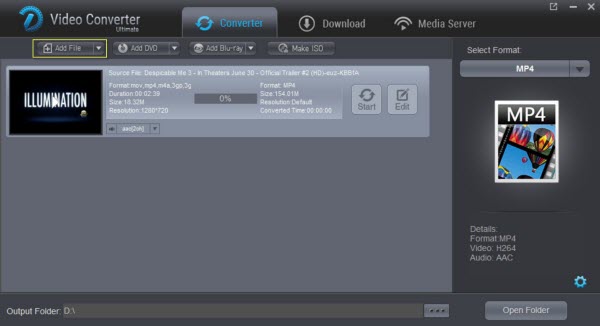
Click the"Add File" button to load AVI files from your computer or other devices like USB device, camcorder, AVI player, etc. You can also directly drag the files you want to convert to the main interface. Double click the video to preview it with the built-in AVI player. 


2. Select output format

Click Select Format bar and choose PowerPoint supported video format as output format.

Tips:
  • To insert and play AVI in PowerPoint for Windows, converting MP4 to MPEG-1 is recommended, you may also try WMV, AVI, ASF as the output video format.  For PowerPoint 2013 and later version, you can select MP4 format which has already been preset as H.264/AAC by default. 
  • To add and play AVI in PowerPoint for Mac, converting AVI to MOV or H.264 MP4 is recommended.
3. Edit the AVI videos (Optional)

Click the "Edit" button and edit your videos before processing format conversion. There are main seven functions available: Trim, Adjust, Watermark,  Effect and 3D. When enter the edit > Trim interface, you should either drag the slider bar back and forth or set the start time and the end time for the video to get the part you want. 

4. Do video/audio settings (Optional)

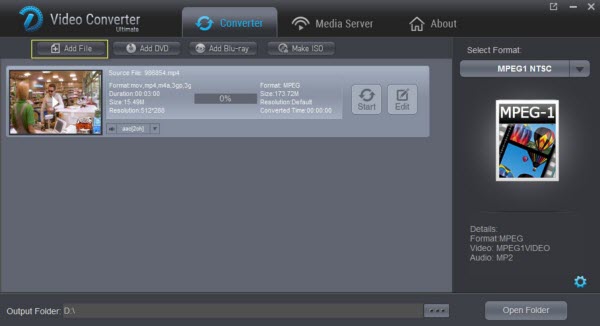
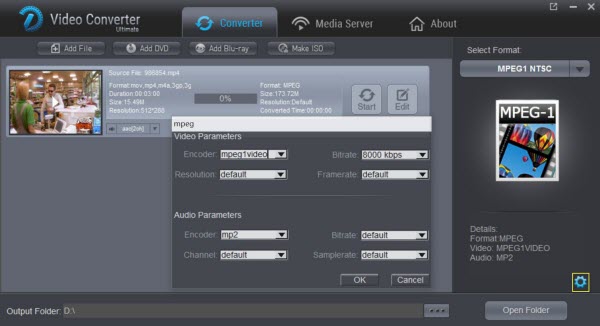
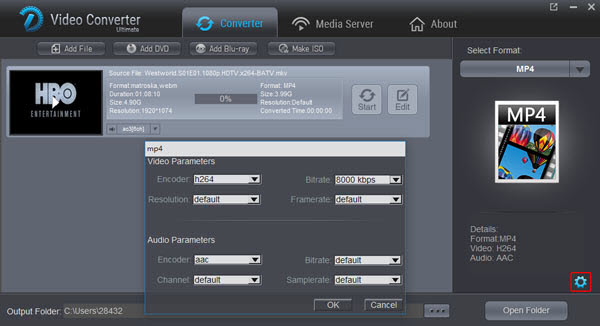
This AVI to PPT converter looks to be a simple program until you see all the rather complex advanced options hidden away in the "Setting" button, where there has support of configuration for each of the variety of video formats and codecs.


In addition to converting AVI to PowerPoint video, the program has presets from columns on the left side for dozens of popular devices like the iPad, iPhone, TV, VR and many more. Just select a preset and it will fill in all the settings for you accordingly.

4. Start the conversion

Click "Start" to begin converting AVI to PowerPoint compatible video files. After the conversion, you will get the desired videos in the destination folder.

Part II. Insert your converted AVI video to PowerPoint

Before starting adding video to PowerPoint, you need to create a folder and put both your converted video and your PowerPoint presentation in this folder. Then open the PowerPoint in this folder to insert the converted video file which is just located in this folder.

Open your PowerPoint presentation and click "Insert".
  • For PowerPoint 2013, click the Video drop-down arrow, then select Video on My PC. Locate and select the desired video file, then click Insert. 
  • For PowerPoint 2007, choose Movie and select the video clips. 
  • For PowerPoint 2003, select "Movie and Sounds" > "Movie from File" to choose the video clips.

In this way, you can play any kind of AVI file in PowerPoint without the limitation! The workflow is convenient and flexible in spite of the PowerPoint version you are using. Now, everything should run as smooth as clockwork. Just enjoy your vivid PowerPoint slide presentation. 

So here is the whole tutorial. Hope you have found the solution for your question and if you thnk it's helpful, please share the tip with others. 
Free Download or Purchase Dimo Video Converter Ultimate:


Need the lifetime version to work on 2-4 PCs so that your friends and family can instantly broaden their entertainment options? Please refer to the family license here. 


Kindly Note:

The price of Dimo Video Converter Ultimate for Windows is divided into 1 Year Subscription, Lifetime/Family/Business License: $43.95/Year; $45.95/lifetime license; $95.95/family license(2-4 PCs); $189.95/business pack(5-8 PCs). Get your needed one at purchase page.

Contact us or leave a message at Facebook if you have any issues.

Related Articles:

Tuesday, May 2, 2017

How to Solve VLC Won't Play MKV Video Files

Since VLC becomes a popular open source multimedia player, many people have been wondering "Can VLC Player Play MKV files?" Does VLC play MKV video? According to From VideoLAN official website, we learn that MKV is really one of VLC Player supported video formats. However, sometime we still fail to play MKV in VLC. Common issues have often troubled many guys: "Can't hear the sound of MKV files at all", "VLC stuttering or choppy when playing MKV" or "VLC just load MKV file all the time". In this article, we aim to work out possible 3 solutions to help you play MKV with VLC Media Player smoothly.


How to Play All Kinds of MKV in VLC Media Player?

Solution 1: Convert MKV to VLC Player more compatible formats - Convenient Way

Since MKV is a container format which may contain multiple video and audio streams. And the video and audio stream can be encoded any of several ways. If the MKV video or audio codec is not VLC Player supported one, VLC Media Player won't play MKV video of this kind. In order to solve "VLC Media Player won't play MKV files and to successfully play any MKV video in VLC Media Player, we had better convert MKV to VLC most supported video format like MP4 for smooth playback instead of downloading a codex bundle.

Here Dimo Video Converter Ultimate is recommended to help you achieve the goal. It is one of the top video converters for Windows 10, 8, 7, etc. With this software in hand, you can convert any videos including MP4, MKV, AVI, VOB, Tivo, MTS, MXF, MOV, MPG, etc. to VLC supported file formats. 

Moreover, it can help compress 1080p HD, 4K UHD videos for smooth playback on your media player or multimedia devices with minimum quality loss. It is very efficient since it allows you to convert either the whole video or parts of it. You can also crop the video to get your desired results.  you are Mac users, please turn to the equivalent Mac version named Dimo Video Converter Ultimate for Mac to transcode .mkv files to VLC on Mac OS X (Sierra, El Capitan included). If you're stuck in VLC media player, just download it and start the conversion following the tutorial below. 
Free Download Dimo Video Converter Ultimate (Win/Mac):


Other Download: 
How to convert MKV to VLC Media Player

STEP 1. Add MKV video

Start up the MKV to VLC Media Player converter, and then click "Add File" to import all .MKV files.  


STEP 2. Choose VLC's feasible format as output format

Click the "Select Format" menu, select VLC Media Player friendly format as your output video format. There, you can take MP4, AVI or MKV from "Format > Video" as your output video format. If you prefer high definition videos, move your mouse pointer to "Format > HD Video" and then choose HD MP4, HD AVI or HD MKV.

Tip 1: The smart MKV file converter additionally offers some useful edit functions to enhance your video. Click the Edit button to get it.

Tip 2: You can adjust the parameters by clicking "Settings" button, choose the resolution, bitrate, frame rate as you want.


STEP 3. Start converting MKV to VLC Media Player

Click "Start" button to start MKV conversion for playing with VLC Media Player. The conversion process will take a while, and you'll see an encoding progress bar. Once finished, click the Open button in the main interface and you can locate the encoded MKV files effortlessly. And then you are able to add them to your VLC for playback easily without any issues.

Solution 2. Seek for A VLC Alternative - Fast way

Rather than asking "Does VLC play MKV?", "How can I import MKV to VLC?", "How to stop VLC freezing", why not switch to another media player as so many good players are available out there. Here 8K Player for Win/Mac will definitely worth a shot. As an all-around free media player, it can freely open and play all SD/HD/4K/8K videos and audios in MKV, MP4, AVI, WMV, MOV, MP3, FLAC, etc smoothly! No need to install any codec packs, plug-ins or components. If you need to play Blu-ray or DVD discs, you can free download the 8K Player Blu-ray Power to have a try.

Free Download 8K Player for Win/Mac (Blu-ray Power) :


Solution 3: Install appropriate codec pack - A Universal Solution

There are various free codec packs online which will allow us to decode and play MKV files. The disadvantage of this approach is that you have to download a lot of codecs but if you are only trying to play one type of video file. It is hard to find the right encoder for each MKV video. Another shortcoming is these codecs not always work well as MKV videos always been encoded in several ways.

Other solutions you may need:

VLC Player No Sound Solution: Solution 1, Unmute your VLC Player; Solution 2, select Tools > Preferences menu to open Preferences dialog, select Audio on the left, and confirm Enable audio is checked. Then Click Output module drop-down button and try a different default.

MKV Skipping Solution: Select Tools > Preferences menu to open Preferences dialog, then select All at the bottom of the dialog, and then select Input/Codecs on the left. On the right of the dialog, in Advanced group, set the value of File caching to 1000.

Choppy Solution: Try to disable hardware decoding. Go to Tools > Preferences menu, select Input/Codecs > Video codecs > FFmpeg. And then set the value of Hardware decoding to Disable in Decoding group.

For users who prefer to stick with VLC and do not want to convert MKV to VLC supported formats or use another MKV Player either, there are left with no choice but to tweak some settings with VLC itself or disable the hardware decoding. But it does not always work out and you may get confused if setting stuff is totally new to you. So tohelp you with can't play MKV in VLC Media Player playback trouble, finding an MKV Player alternative or MKV Converter will be more effective.

Free Download or Purchase Dimo Video Converter Ultimate:


Need the lifetime version to work on 2-4 PCs so that your friends and family can instantly broaden their entertainment options? Please refer to the family license here. 


Kindly Note:

The price of Dimo Video Converter Ultimate for Windows is divided into 1 Year Subscription, Lifetime/Family/Business License: $43.95/Year; $45.95/lifetime license; $95.95/family license(2-4 PCs); $189.95/business pack(5-8 PCs). Get your needed one at purchase page.


Related Software:

BDmate (Win/Mac)

Lossless backup Blu-ray to MKV with all audio and subtitle tracks; Rip Blu-ray to multi-track MKV; ConvertBlu-ray to almost all popular video/audio formats and devices; Copy Blu-ray to ISO/M2TS; Share digitized Blu-ray wirelessly.

DVDmate (Win/Mac)

A professional DVD ripping and editing tool with strong ability to remove DVD protection, transcode DVD to any video and audio format, and edit DVD to create personal movie.

Videomate (Win/Mac)

An all-around video converter software program that enables you to convert various video and audio files to formats that are supported by most multimedia devices.

Contact us or leave a message at Facebook if you have any issues.

Related Articles: